Ruler SVG for School, Math, and Wooden Designs: A Practical Guide to Choosing and Using Cut Files
Ruler SVG files have become a staple for anyone working with cut machines like Cricut and Silhouette. Whether you are creating back-to-school projects, math teacher gifts, or wooden ruler decorations, these versatile designs offer a clean, professional look without needing to draw or scan anything by hand. The appeal is understandable: a single download often includes SVG, PNG, JPG, EPS, DXF, and PDF formats, making it easy to use across different software and machines. But as with any digital craft resource, there are nuances that separate a smooth project from a frustrating one. This article walks through common mistakes, practical solutions, and what to look for before you buy or download your next ruler SVG set.
What Ruler SVG Files Really Offer
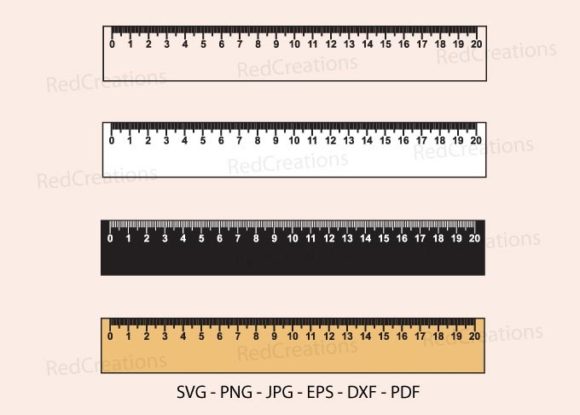
At its core, a ruler SVG is a vector graphic that scales cleanly to any size. Many sets include a wooden ruler aesthetic, complete with measurement marks, numbers, and sometimes decorative elements like pencils, apples, or chalkboard motifs. Teachers, homeschool parents, and crafters use these files for classroom decor, personalized gifts, sublimation on mugs and tumblers, t-shirt designs, stickers, card making, and framed artwork. The file formats included—SVG, PNG, JPG, EPS, DXF, and PDF—cover virtually every cutting machine and design software. But having all those formats does not guarantee a hassle-free experience.
Mistake #1: Assuming All Ruler SVGs Are Properly Scaled
One of the most common oversights is assuming the ruler in your SVG file is accurately scaled to real-world measurements. Many designs are intended for decorative use only, meaning the inch or centimeter marks may not be exact. This becomes a problem if you need the ruler to actually measure something—or if you are combining it with other elements that require precise alignment.
What to check: Before purchasing or downloading a ruler SVG, look for information about scaling. Some files are drawn at a specific size (for example, 12 inches long), while others are designed to be resized proportionally. If accuracy matters, confirm that the file has been created with measurement precision in mind. For decorative projects like t-shirts, mugs, or stickers, exact scaling is usually less critical, but you still want the proportions to look right.
Better approach: Test the file by cutting a small version on scrap material first. Adjust the scale in your design software until the tick marks match a real ruler. Most cutting software allows you to resize by percentage, so you can fine-tune without guesswork.
Mistake #2: Overlooking Layer Organization in SVG Files
A well-made ruler SVG file will have separate layers for the ruler body, markings, numbers, and any decorative elements. Poorly organized files often merge everything into a single layer, making it difficult to change colors, remove elements, or customize for different projects. This is especially frustrating when you want to use the ruler for sublimation (which often requires separation of colors) or for cutting on different materials.
What to check: Open the SVG file in your design software (Cricut Design Space, Silhouette Studio, Adobe Illustrator, or Inkscape) before cutting. Look for distinct layers that you can toggle on and off. If the ruler has a wooden texture, a separate layer for the wood grain can save you time when you want a solid color alternative.
Better approach: If you are purchasing a set, look at the seller's preview images. Many reputable creators show the file opened in software so you can see the layer structure. For free downloads, be prepared to do a bit of cleanup yourself. Ungroup the elements and rename layers for easier navigation.
Mistake #3: Ignoring Format Compatibility With Your Machine
Having SVG, PNG, JPG, EPS, DXF, and PDF files in one download is convenient, but not every format works seamlessly with every machine. For example, Cricut Design Space handles SVG and DXF well, but EPS files may require conversion. Silhouette Studio works with SVG and DXF, but older versions may need a specific format. PNG and JPG are raster formats, meaning they will not cut cleanly unless you trace them first—a step many beginners skip.
What to check: Confirm the file format your specific machine and software version prefers. For most Cricut users, SVG is the safest bet. Silhouette users may prefer DXF. If you are using the file for sublimation, PNG with a transparent background is ideal. For print-and-cut projects, PNG or JPG work well as long as the resolution is high enough (300 DPI is standard).
Better approach: When you download a ruler SVG set, save all the formats to a folder on your computer. That way, you have options later. If you are not sure which format to use, start with SVG—it is the most universal vector format for cutting machines.
Mistake #4: Not Checking Line Thickness for Cutting
Ruler designs often contain thin lines for measurement marks and numbers. When these lines are too thin, the cut machine may fail to cut them cleanly, or the material may tear. This is a common issue with free or poorly optimized files. Thick lines are easier to cut and weed, but they may not look like a real ruler.
What to check: Look at the preview images carefully. If the ruler markings appear very delicate, zoom in to see the stroke thickness. A good rule of thumb is that lines should be at least 0.5 mm thick for standard cutting on cardstock or vinyl. For intricate cuts like stickers or stencils, thicker lines are safer.
Better approach: If you love a design but the lines are too thin, you can thicken them in your design software. In Cricut Design Space, use the "Offset" tool to add a thin outline around the lines. In Illustrator or Inkscape, you can adjust the stroke width. Just be careful not to distort the ruler marks—test a small section first.
Mistake #5: Using Ruler SVGs Without Considering the Project Context
A wooden ruler SVG that looks great on a card might not work well for a sublimated mug or a t-shirt design. The same file that has fine wood grain detail could become muddy when printed on fabric or when sublimated onto a dark surface. Additionally, a ruler design meant for cutting may have too many small pieces for weeding on vinyl.
What to check: Think about the final use before you choose your file. For sublimation, look for designs with clear, bold lines and minimal fine detail. For t-shirts, consider a design that reads well at a distance—larger numbers and thicker markings. For stickers, detailed wood grain can be beautiful, but you will need a high-quality printer and adhesive material.
Better approach: Maintain a small library of ruler SVGs with different styles: a simple clean ruler for everyday projects, a detailed wooden ruler for high-end crafts, and a playful school-themed ruler for teacher gifts and back-to-school items. This way, you always have the right style for the job.
What to Look for Before Buying or Downloading
Whether you are purchasing from a marketplace or downloading a free set, there are a few quick checks that can save you time and frustration.
- Check the preview images for layer visibility, line thickness, and overall design quality. If the preview shows the file opened in software, that is a good sign.
- Read the description for file format details, scaling notes, and any limitations. Some sellers specify whether the ruler is true to scale.
- Look at customer reviews or comments. Other users often mention if the file worked well with their machine or if adjustments were needed.
- Test on scrap material before using your good supplies. A quick test cut or print will reveal any scaling, thickness, or alignment issues.
- Keep file formats organized in clearly named folders so you can find the right version later. This is especially helpful if you use the same design for multiple projects.
Practical Tips for Using Ruler SVGs in Your Projects
Once you have a good set of ruler SVG files, the creative possibilities are broad. Here are a few ways to get the most out of your designs.
- For card making and photo albums: Use the ruler as a border or accent. Layer it over patterned paper to add a school-themed touch. Trim the ruler to a shorter length if needed—SVG files are easy to edit.
- For framed artwork: Combine the ruler with other school-themed SVG elements like pencils, books, or apples. Print on quality paper and frame for a classroom-ready piece. The wooden ruler style works particularly well in rustic or farmhouse frames.
- For sublimation: Use PNG files with transparent backgrounds. Place your design in sublimation software, adjust the size, and print with sublimation ink on coated surfaces like mugs, cups, or apparel. Bold ruler designs with clear numbers read best on curved surfaces.
- For t-shirts and apparel: The ruler design works well across the chest or down the sleeve. For a vintage look, choose a wooden ruler SVG with a slight distressed texture. For a modern look, go for a clean, colorful ruler.
- For stickers: Cut the ruler design from vinyl or print on sticker paper. Ruler stickers are popular for planners, notebooks, and classroom rewards. Small ruler designs also make great labels for organizing supplies.
- For cups and mugs: Use the ruler as a vertical or horizontal accent. A ruler wrapping around the base of a mug looks clean and intentional. Pair it with a math equation or a teacher quote.
Final Thoughts on Ruler SVGs for School, Math, and Wooden Designs
Ruler SVG files are a practical and enjoyable addition to any crafter's digital library. Whether you are making gifts for teachers, decorating your classroom, or selling custom items on your small business site, these designs offer a recognizable and versatile theme. The key to success lies in choosing files that are well-organized, appropriately scaled, and optimized for your specific project. By checking layer structure, line thickness, format compatibility, and scale accuracy before you start, you can avoid the common pitfalls that turn a promising project into a frustrating one. Take the time to test your files, build a small collection of styles, and adjust your designs to fit the medium. With these habits in place, you will get consistent, professional results from your ruler SVGs every time.